Observability
Inspect, monitor, and debug workflows through the CLI and Web UI with powerful observability tools.
Workflow DevKit provides powerful tools to inspect, monitor, and debug your workflows through the CLI and Web UI. These tools allow you to inspect workflow runs, steps, webhooks, events, and stream output.
Quick Start
npx workflowThe CLI comes pre-installed with the Workflow DevKit and registers the workflow command. If the workflow package is not already installed, npx workflow will install it globally, or use the local installed version if available.
Get started inspecting your local workflows:
# See all available commands
npx workflow inspect --help

# List recent workflow runs
npx workflow inspect runs
Web UI
Workflow DevKit ships with a local web UI for inspecting your workflows. The CLI
will locally serve the Web UI when using the --web flag.
# Launch Web UI for visual exploration
npx workflow inspect runs --web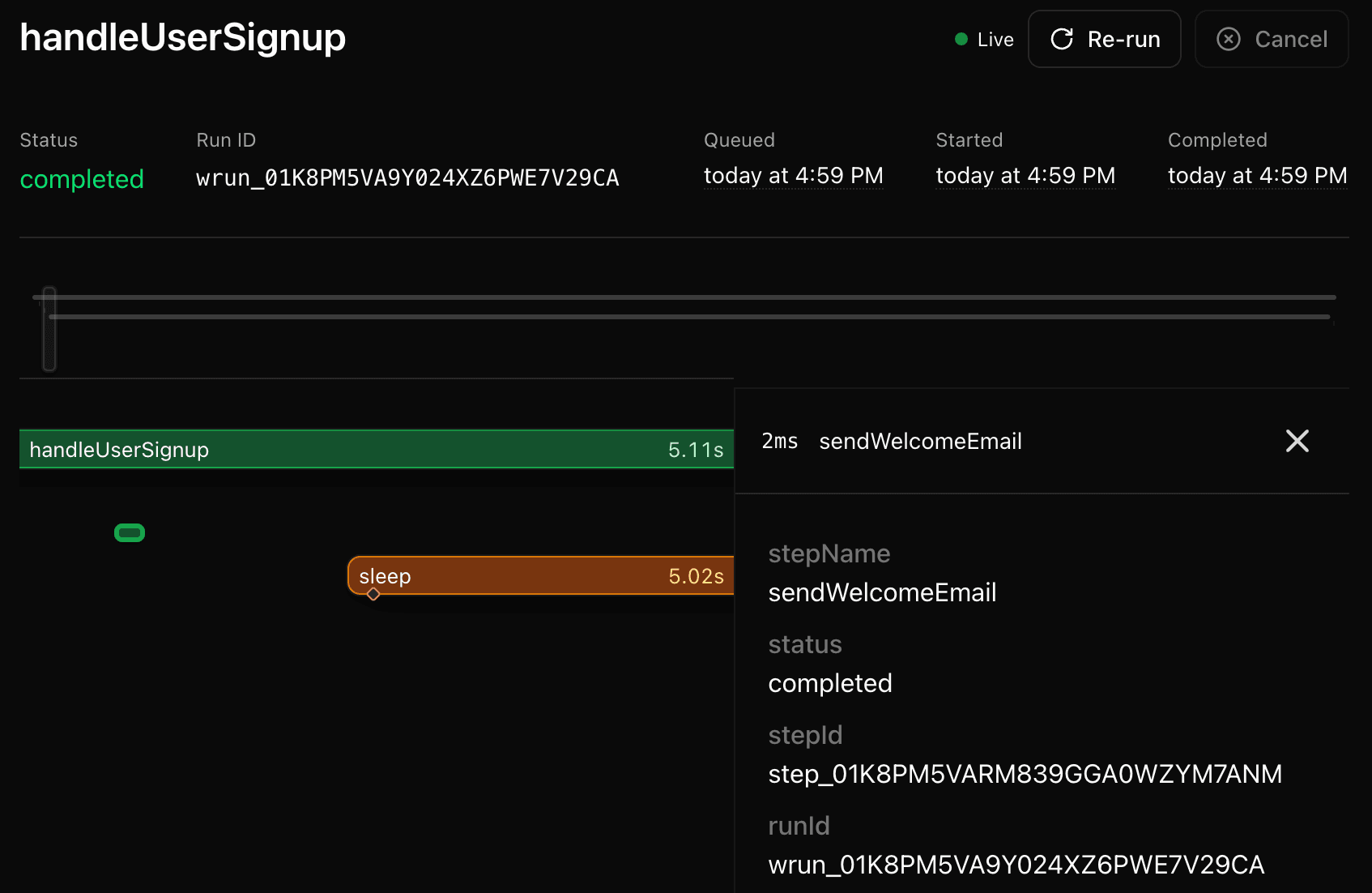
Debugging silent step failures
The Web UI is useful for catching steps that fail without producing visible errors. Click into a run to see the full step trace. Each step shows its status, duration, retry count, and any errors.
For example, if a step completes but produces no output, the Web UI shows whether the step was retried, how long it took, and what data it returned. This is information that standard console logs often miss.
To debug a specific run:
- Open the Web UI with
npx workflow inspect runs --web - Click into the run that is behaving unexpectedly
- Inspect the step trace to find steps that failed, were retried, or returned unexpected data
- Check the stream output tab to verify that the expected chunks were written
This workflow works against both local and production runs. Use --backend vercel to inspect production workflows remotely.
Backends
The Workflow DevKit CLI can inspect data from any World. By default, it inspects data in your local development environment. For example, if you are using Next.js to develop workflows locally, the
CLI will find the data in your .next/workflow-data/ directory.
If you're deploying workflows to a production environment, but want to inspect the data by using the CLI, you can specify the world you are using by setting the --backend flag to your world's name or package name, e.g. vercel.
Backends might require additional configuration. If you're missing environment variables, the World package should provide instructions on how to configure it.
Vercel Backend
To inspect workflows running on Vercel, ensure you're logged in to the Vercel CLI and have linked your project. See Vercel CLI authentication and project linking docs for more information. Then, simply specify the backend as vercel.
# Inspect workflows running on Vercel
npx workflow inspect runs --backend vercel
When deployed to Vercel, workflow data is encrypted end-to-end. Encrypted fields display as locked placeholders until you choose to decrypt them using the Decrypt button in the web UI or the --decrypt flag in the CLI.